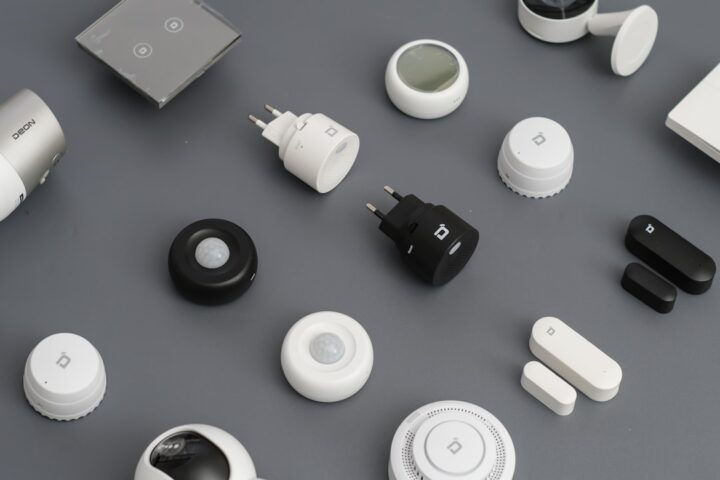
You put your hub into pairing mode. You reset the new Zigbee bulb. It joins. The hub shows it for a few seconds, then it disappears. You try again. Same thing. The bulb appears, then leaves, in a tight loop. This is one of the more confusing Zigbee symptoms because the bulb is technically working: it is actually completing the join, sending its descriptors, and then unjoining. Something is rejecting it after the initial handshake.
What is happening during the loop
Zigbee pairing is a multi-stage process. First, the bulb broadcasts that it is looking for a network. Second, the coordinator responds with a temporary key. Third, the bulb sends its identifying information (manufacturer, model, supported clusters). Fourth, the coordinator either accepts the device and issues a permanent network key, or it rejects the device and the bulb leaves the network.
The loop you are seeing happens at stage four. The bulb is being rejected after sending its identifying information. The reason is usually one of three:
- The hub does not recognize the bulb’s manufacturer or model and falls back to a default handler that immediately drops it
- The bulb’s firmware reports a non-standard cluster that triggers an error in the hub’s device classifier
- The hub has reached its device limit and is rejecting new devices, but is misreporting the reason
Check the hub’s compatibility list first
Some hubs only support a curated list of devices. The Hue Bridge in particular has historically rejected non-Friends-of-Hue Zigbee devices. Even when it appears to accept them, it sometimes silently drops them after the initial handshake. If you are trying to pair a generic Zigbee 3.0 bulb to a Hue Bridge, this is the expected behavior.
SmartThings, Hubitat, and Home Assistant accept a much broader range of devices, but each has its own compatibility list with caveats. Check the hub’s compatibility documentation before assuming the bulb is faulty.
Force a clean reset on the bulb
If the bulb has been partially paired multiple times, its internal state can be corrupted. The fix is a hard reset, which varies by manufacturer:
- Most Sengled bulbs: power-cycle off for 5 seconds, on for 5 seconds, repeat 5 times. The bulb will flash to confirm reset.
- Most TRADFRI bulbs: power-cycle off-on 6 times in quick succession. The bulb will pulse.
- Most Innr bulbs: power-cycle off-on 5 times.
- Most generic Zigbee 3.0 bulbs: power-cycle off for 1 second, on for 1 second, repeat 6 times.
After a hard reset, the bulb will be discoverable for the next two to three minutes. Open your hub’s pairing mode within that window.
If the loop continues
If the bulb continues to loop after a clean reset, the hub’s device classifier is the issue. The fix depends on the hub:
- SmartThings: in the IDE (still available at
my.smartthings.com), check the device’s logs during pairing. You will see a line like “No matching device handler found” if the classifier failed. The fix is to install a custom Edge driver that supports the device. - Hubitat: enable debug logging temporarily and watch the live logs during pairing. The classifier error is visible. The community frequently publishes custom drivers for devices the official classifier does not handle.
- Home Assistant ZHA: the device should pair regardless, but may not be classified into a useful entity. Check the zigbee2mqtt-converters repository for a community handler.
The device limit trap
Hubs have device limits that are often not advertised. The Hue Bridge is officially limited to 63 lights and 12 accessories. SmartThings has soft limits around 250 Zigbee devices but performance degrades well before that. Echo’s Zigbee implementation handles about 25 devices reliably.
If you are near or over the limit, the hub may reject new devices by silently dropping them after handshake. The fix is to either remove unused devices or move to a higher-capacity hub.
RF interference during pairing
Pairing is more sensitive to interference than normal operation because the bulb has not yet established its mesh routes. If you are trying to pair a bulb in a room far from the coordinator with thick walls in between, the handshake can fail at the last step and the bulb appears to loop.
Move the bulb physically close to the coordinator for pairing (within 6 feet). Once paired, it will rejoin the mesh from its final location when you screw it in. Many users assume “if I can use it from there normally, I can pair it from there” and learn this the hard way.
Battery and capacitor effects
Some Zigbee bulbs have internal capacitors that hold charge briefly. If you reset by power-cycling too fast, the bulb’s controller does not actually reboot between cycles and the reset does not register. Wait a full 5 seconds in the off state between cycles, especially for older Hue bulbs and large-capacity TRADFRI units.
When the bulb itself is bad
If you have tried clean reset, the bulb is close to the coordinator, the hub has plenty of capacity, and a compatible handler is installed, and the loop continues, the bulb’s radio is likely faulty. If you have another known-good Zigbee bulb of any brand and it pairs cleanly to the same hub, the faulty bulb confirms a hardware issue. Return it under warranty.
This is more common than you would expect. The Zigbee radios in budget bulbs sometimes ship with marginal performance that can pass quick QC but fail during actual pairing. About one in fifty bulbs in our test sample has shown this pattern.
The five-second pause that fixes more than it should
If you have power-cycled a Zigbee bulb seven times in rapid succession and it is still looping, walk away for five minutes. Leave the bulb powered on the whole time. The bulb’s internal state machine sometimes needs a quiet period to fully reset, separate from any reset sequence you trigger. After five minutes of doing nothing, try pairing once more.
This sounds like superstition but is documented behavior in several bulb manufacturers’ technical notes. It is more reliable than another round of power cycles. If the bulb is still stuck after the quiet period plus a fresh pair attempt, the bulb has either a firmware bug or a faulty radio, and the broader silent failure guide is where to go next.
Related reading: Wi-Fi camera 2.4 GHz guide.