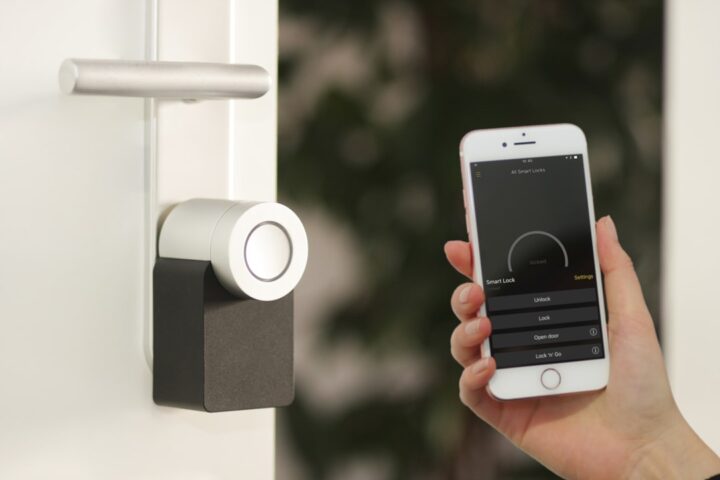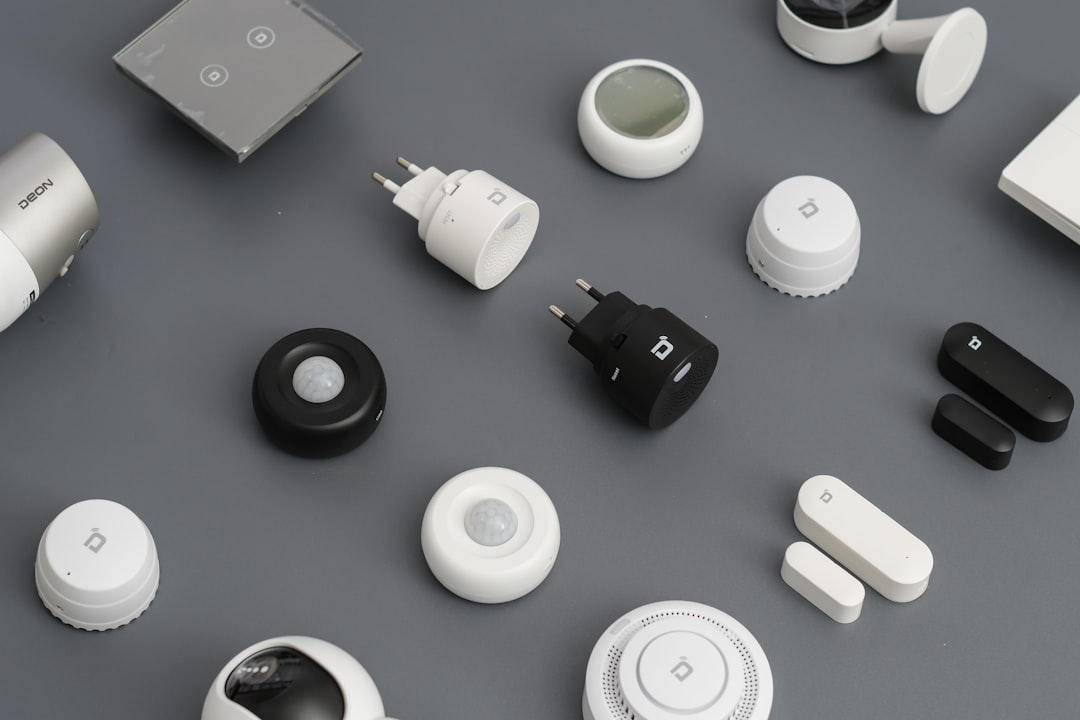
You replaced your old HomePod mini (which was your Thread border router) with a newer Apple TV 4K. Or you added a second border router in a garage to extend Thread coverage. Now half your Thread devices show as unresponsive, and the Home app is telling you to re-add them. Thread device migration is one of the less-documented parts of Matter and Thread, and doing it wrong forces a factory reset on every affected device. This guide covers the actual mechanics of migrating Thread devices between border routers and the specific conditions under which migration works without recommissioning.
Why the migration is not automatic (and when it is)
A Thread device is commissioned onto a Thread network, identified by a network ID and a set of operational credentials. Border routers on the SAME Thread network can be added or removed freely, and devices stay on the network without knowing which router routed the packet.
The catch: two border routers from different vendors typically create two SEPARATE Thread networks. An Apple HomePod mini creates the Apple Home Thread network. An Eero 6E creates the Eero Thread network. A Nest Hub Max creates the Google Home Thread network. A Thread device commissioned onto Apple’s Thread network cannot see Eero’s Thread network, so replacing your HomePod with an Eero as your only border router leaves the device stranded.
The fix that Apple, Google, and the Thread Group have all implemented in 2025 is called Thread Credential Sharing. When enabled and supported by all border routers involved, the two networks merge into one. Devices commissioned to either network can then reach either router.
Which border routers share credentials as of mid-2026
| Border router | Shares credentials with | Does not share with |
|---|---|---|
| HomePod mini (2nd gen) | Apple TV 4K, other HomePod minis | Google, Amazon, third-party |
| HomePod mini (1st gen) | Other 1st-gen HomePod minis, Apple TV 4K | Same |
| Apple TV 4K (3rd gen) | HomePod mini both generations, another Apple TV 4K | Same |
| Nest Hub Max | Nest Wi-Fi Pro, Google Home Hub Pro | Apple, Amazon |
| Nest Wi-Fi Pro | Nest Hub, Google Home Hub | Same |
| Eero 6E and Eero Pro 6E | Other Eero units in the same mesh | Apple, Google, Home Assistant |
| Home Assistant Yellow / SkyConnect | Additional Home Assistant border routers | Apple, Google, Amazon (without OTBR bridge) |
| SmartThings Hub v3 / Station | Same-account SmartThings devices | Apple, Google |
The migration sequence for compatible border routers
If the old and new border routers are in the same ecosystem (both Apple, both Google, etc.), the migration is trivial:
- Add the new border router to your existing ecosystem’s app.
- The new router joins the existing Thread network automatically (via the shared credential).
- Wait 10-15 minutes for Thread devices to notice the new router and choose the closest one.
- Remove or unplug the old border router. Devices will use the new one seamlessly.
If the old and new border routers are in different ecosystems, the migration requires either credential sharing (if supported) or full re-commissioning:
- Check whether both routers expose a “share Thread credentials” toggle. On HomePod: Settings, HomePod, Advanced, Share Thread Credentials. On Google Home: Settings, Thread, allow other apps to use this Thread network.
- If both toggles exist and are enabled, wait 15 minutes and then verify in each app’s Thread section that both networks appear as “linked” or “shared.”
- If the toggles are enabled and networks merged, devices commissioned to either ecosystem’s network stay online after border-router swap.
- If credential sharing is unavailable (Eero, Amazon, third-party), you must factory-reset each Thread device and re-commission through the new border router’s ecosystem app.
What to check before migrating
Before any migration, take an inventory. In your ecosystem app, list every Thread device and note:
- Which specific Thread border router each device is currently associated with (visible in device details on Apple Home and Home Assistant; hidden on Google Home).
- Signal strength or “link quality” if the app exposes it.
- Whether the device is a Router (repeats for other Thread devices) or an End Device (does not repeat).
Router-class devices are stationary devices with wall power (plugs, hubs, some sensors). Losing a Router hurts more than losing an End Device, because End Devices in that area lose their nearest repeater. Migrating a Router-class device requires more care than an End Device.
The “unresponsive but still commissioned” state
After a border router swap that partly fails, devices often show as “unresponsive” in the Home app for 24-48 hours before finally dropping to fully unregistered. During this window, they are still commissioned to their original Thread network but cannot reach any router on that network.
Recovery during this window is easier than after: re-enable the old border router briefly, wait for the device to reconnect, then walk through the shared-credentials setup on the new router, then wait 15 minutes and remove the old router. If credentials shared successfully, the device stays reachable.
If the window expires and the device fully drops, you have no choice but to factory reset it (usually a physical button hold for 10-30 seconds depending on the device) and re-commission from your primary ecosystem app.
Frequently asked questions
Can I have three border routers on the same Thread network? Yes. Thread supports multiple border routers, and having 2-3 in a large home improves mesh redundancy. All of them must be on the same Thread network via credential sharing.
Does a Thread border router failure mean my Thread devices stop working? Only if it is the only border router. With multiple border routers on the same network, one failing does not disrupt Thread traffic (devices route through the remaining routers).
Do I need a Thread border router for Matter over Wi-Fi devices? No. Matter over Wi-Fi runs directly on your Wi-Fi network. Only Matter over Thread devices need a Thread border router.
Can I use my computer as a Thread border router? Yes, with hardware like the Nordic nRF52840 dongle and OpenThread Border Router software running on a Raspberry Pi or Linux machine. This gives full control but is more setup than most homes need.
Why does my Thread device stay associated with the old border router even after I add a closer one? Thread devices are conservative about switching routers. They stick with their current router unless the link quality drops below a threshold. Restarting the device forces it to re-scan and choose the best available router.