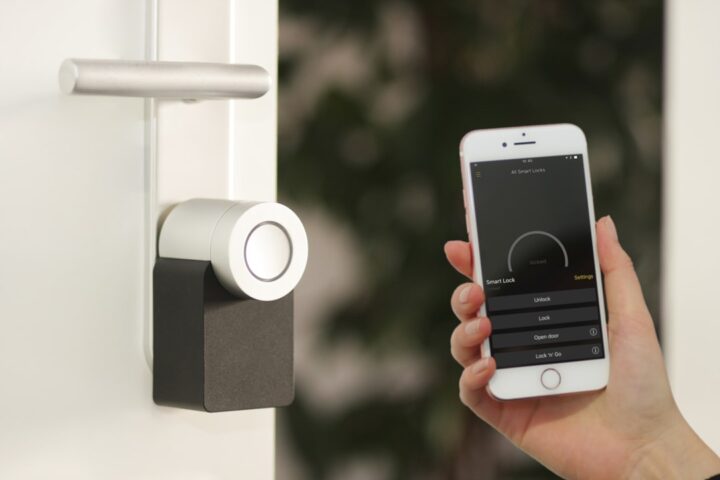
The worst kind of pairing failure is the silent one. The app spins, then returns to the device list without saying what happened. The device is not added. The app gives no error. You have no idea why it failed. This is when you have to dig into the hub’s logs, which most consumer apps deliberately hide.
Where logs live on each platform
Each platform stashes pairing logs in a different place:
- SmartThings: in the IDE at
my.smartthings.com, your hub’s Events page shows pairing attempts with timestamps and device classifier results. - Hubitat: Logs tab in the web interface. Enable Debug logging on the Zigbee or Z-Wave radio temporarily to see verbose pairing data.
- Home Assistant ZHA: Settings, System, Logs. Filter by zha or zigpy. Set log levels to debug for the affected component in
configuration.yaml. - Home Assistant Z-Wave JS: Settings, Logs, filter for zwave_js. Or check the Z-Wave JS UI for the dedicated log viewer.
- Apple Home: no user-accessible logs. You can use a developer Console.app on Mac connected to your iPhone for HomeKit-related entries during pairing.
- Hue Bridge: no log access for users. The bridge’s API returns errors for failed adds but no detailed reason.
Common silent failure messages
Once you find the logs, look for these patterns. Each maps to a specific root cause:
No matching fingerprint: the device’s manufacturer and model do not match any installed driver. Install a community driver.Inclusion timed out: the device started pairing but did not complete within the timeout. Move closer to the hub.Security negotiation failed: Z-Wave-specific. The S2 DSK was wrong, missing, or the device requires a higher security level than the hub offered.Address already in use: the device was previously paired and not properly removed. Run an exclusion or factory reset.Cluster not supported: the device advertised a Zigbee cluster the hub does not handle. Driver update or workaround required.Network full: the hub hit its device limit. Remove unused devices or upgrade the hub.Wi-Fi association failed: the device joined the network but could not get an IP. Check DHCP pool and Wi-Fi credentials.
SmartThings IDE specifically
The SmartThings IDE is the most useful tool for diagnosing pairing failures on SmartThings hubs. To use it:
- Log into
my.smartthings.comwith your Samsung account. - Click “My Locations” then your location name.
- Click “My Hubs” then your hub.
- Click “View Events” or “Hub Events”.
- The events stream shows every device classifier attempt, every Zigbee join attempt, every Z-Wave inclusion attempt, with timestamps.
Trigger a pairing attempt on your device. Watch the events page refresh. The failure will appear within seconds, with enough detail to diagnose.
Hubitat Live Logs
Hubitat’s logs are arguably the most transparent of any consumer hub. To enable verbose logging:
- Go to the hub admin interface.
- Click Logs.
- Click the Zigbee or Z-Wave details page.
- Enable Debug logging temporarily.
- Trigger pairing.
- Watch the logs tab as messages stream in real time.
Disable debug logging when you are done; it generates large volumes of data that fill the log buffer.
Home Assistant log filtering
Home Assistant logs are extensive but require knowing what to filter for. The most useful filters during pairing:
homeassistant.components.zha: ZHA integration messageszigpy: lower-level Zigbee stack messageszwave_js: Z-Wave inclusion attemptshomeassistant.helpers.entity_platform: device entity registration
Set these to debug level in configuration.yaml for the duration of pairing investigations, then revert to warning to avoid noisy logs.
When the logs are empty
If you trigger a pairing attempt and the logs show nothing, the hub did not see the device’s join attempt at all. This is usually:
- The device is not in pairing mode
- The device is out of range
- The hub’s radio is malfunctioning
- The hub is not actually in pairing mode (the app may have indicated it but the hub backend did not engage)
Reboot the hub, retrigger pairing mode from the app, watch the logs to confirm pairing mode is actually active (you should see periodic broadcast announcements).
The third-party scanner approach
For really stubborn cases, a Zigbee sniffer (a USB stick like the Sonoff Plus, paired with software like Wireshark with the Zigbee dissector) can show you the raw RF traffic. You can see whether the device is actually transmitting join requests, whether the hub is responding, and where the handshake breaks down.
This is a power-user diagnostic. Most users will never need it. But for cases where logs are silent and you cannot identify the failure source, sniffing the RF is definitive.
Reading vendor docs
If your hub logs an error code without a description, check the vendor’s developer documentation for what the code means. Silicon Labs publishes Z-Wave error code lists. Zigbee Alliance publishes ZCL status codes. The codes are not pretty, but they unambiguously identify the failure stage.
Building a logging baseline before things break
The best time to learn your hub’s log format is before you need it. Trigger a successful pairing on a known-good device and read through what shows up in the log. This is your reference for what “healthy” looks like. The next time something fails silently, you know exactly which log lines should be there and are missing.
Save a copy of that healthy-pair log somewhere outside your hub (a notes app, a text file in cloud storage) so you can refer to it without needing to re-trigger a successful pair. The deeper interpretation patterns are in our SmartThings discovery guide which walks through specific log signatures.
The third-party log viewers worth knowing
For Zigbee debugging on platforms with limited native logging, tools like zigbee2mqtt-frontend running on a Raspberry Pi expose detailed packet-level traces. Setting one up is involved but the visibility is unmatched when nothing else explains a silent failure. The wider context of when to escalate to packet-level diagnostics is in our Zigbee pairing guide.
The cascade that traces back to one device
Silent pairing failures sometimes precede a broader pattern: one misbehaving device triggers a cascade where other pairings start to fail too. The hub gets overloaded with retry traffic. Removing the offending device often restores normal pairing behavior for everything else. For the cascading-routine pattern that comes from a similar root cause, see our routine loop guide.