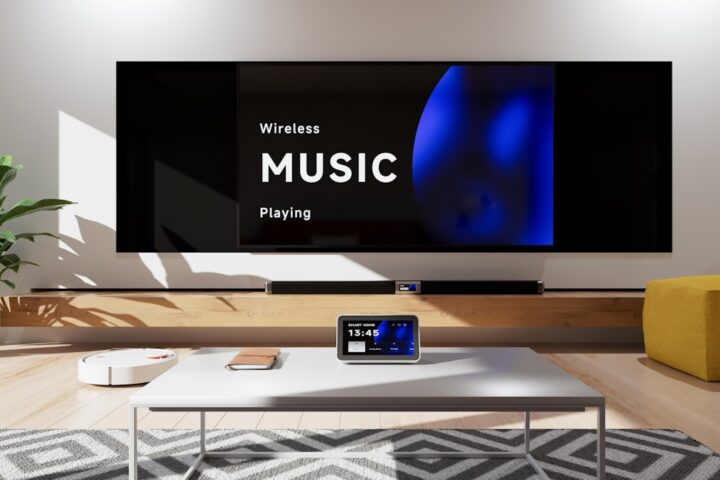
You have a routine that displays a camera feed on your Echo Show when motion is detected at your front door. The routine triggers, the screen turns on, and then freezes on a black or partial screen. The Echo still responds to voice commands. It still plays music. But the display does nothing until you power-cycle the device. This is a specific failure that has a specific cause.
What is happening
The Echo Show runs two largely separate processes: the audio process (Alexa voice, music, timers) and the display process (camera feeds, visual routines, web display). They communicate but they fail independently. When the display process crashes, the audio process keeps running. The user sees a frozen screen with a responsive voice assistant.
Crashes are most common when:
- A camera feed has a codec that the display process cannot decode
- The display is asked to render a complex visual layout (multiple cards, scrolling content)
- The device is running low on memory due to long uptime without a reboot
- A firmware update partially completed and the display process is on an inconsistent state
Recovery: the soft reboot
The fastest way to recover is to ask Alexa to reboot the device, since the audio process is still responsive:
“Alexa, reboot”
This restarts both processes cleanly. The device is back in about 90 seconds. The display works again.
If the voice assistant does not respond either (rare but possible if the audio process also crashed), unplug for 30 seconds and plug back in.
Prevent the freeze
The most effective prevention is a periodic restart. Set a routine that says “Alexa, reboot” at 4 AM weekly. The reboot clears any accumulated memory issues and prevents the display process from getting into a fragile state.
You cannot set this through a normal Alexa routine because Alexa routines do not have an explicit reboot action. The workaround is a scheduled Skill that uses the device commands API, or a third-party tool like Home Assistant that can issue the reboot command on a schedule.
The lower-tech workaround is to set a smart plug on the Echo Show’s power cord and schedule it to power-cycle weekly. Less elegant but works on any setup.
The camera feed crash specifically
If freezes happen specifically when a camera is shown:
- Reduce the camera’s resolution or bitrate
- Update the camera’s firmware
- Try a different camera if available to confirm the issue is the camera-display combination
Cameras with non-standard encodings (some no-name brands) are particularly likely to crash the display process. Mainline brands (Ring, Wyze, Eufy, Blink) are usually safer.
The visual response card overload
Visual response cards are the small visual elements that appear when Alexa answers a question. If a routine triggers multiple visual responses in rapid succession (“weather” followed by “news” followed by “music”), the display process can choke on the queue.
Space out visual actions in routines. Add a Wait step of 5 seconds between visual actions if your routine has many of them.
The web display issue
If your routine displays a web page (a weather dashboard, a home automation panel), the embedded browser in the Echo Show is more fragile than a normal browser. It crashes on pages that desktop browsers handle fine.
Use simple, mobile-optimized pages for web display routines. Avoid pages with auto-playing video, complex JavaScript, or heavy CSS animations.
The over-temperature shutdown
Echo Shows have a thermal cutoff. If the device gets too hot (placed in direct sun, near a stove, with poor airflow), it can throttle the display to a degraded state that looks like a freeze.
Move the device to a cooler location. Verify the back vents are not blocked.
The accumulated cache problem
The Echo Show keeps a media cache of recently displayed content. When the cache fills, performance degrades. Newer firmware manages this better, but older Echo Shows (especially Echo Show 5 and Show 8 first generations) accumulate cache that they do not clear.
A periodic reboot is the most reliable cache cleaner. There is no user-facing cache management.
If the display physically fails
If the freezes become permanent (no recovery after reboot, screen stays black, screen shows visual artifacts), the LCD or backlight has failed. This is a hardware issue.
Echo Show LCDs do fail, especially on units that ran for years. Amazon replacement is the practical path for in-warranty units. For older units, replacement is more economical than repair.
The motion-detected camera routine specifically
This is the most common context where Echo Show freezes are reported. The freeze cascade:
- Motion detected at front door
- Camera feed starts on Echo Show
- Camera resolution exceeds display process buffer
- Display process freezes mid-frame
- Audio process keeps running
Mitigation: in your camera app, set the streaming quality to medium or low instead of high. Echo Show displays usually do not benefit from high-quality streams at their screen sizes anyway.
When to factory reset
If freezes happen frequently even after weekly reboots and routine optimization, a factory reset of the Echo Show is the last software step before assuming hardware failure. The reset wipes app cache, reinstalls firmware, and clears any subtle state corruption.
To factory reset: hold the microphone-off and volume-down buttons together for about 20 seconds until the device starts resetting. Or use the Alexa app: Devices, your device, Factory Reset.
After reset, re-add to your Alexa account and re-link any relevant routines.
The weekly reboot that fixes more than memory
Scheduling a weekly reboot on the Echo Show fixes the memory creep that causes display freezes, but it also resolves several other slow-degradation issues you might not have connected to memory: routine triggers feeling slower over time, voice responses arriving with a half-second lag, and the home screen failing to refresh widget data.
Set the reboot for 4 AM via a smart plug schedule. The five-minute restart window is invisible to most households. The wider context of when smart displays get into bad states is in our smart display setup recovery guide.
The slimmer routine experiment
If a specific routine is causing your Echo Show to freeze, build a copy of the routine with half the actions removed and test it. If the slim version runs cleanly, the issue is routine complexity exceeding the display’s processing budget. Splitting into chained smaller routines is the durable fix. For the broader pattern of routine truncation, see our routine truncation guide.