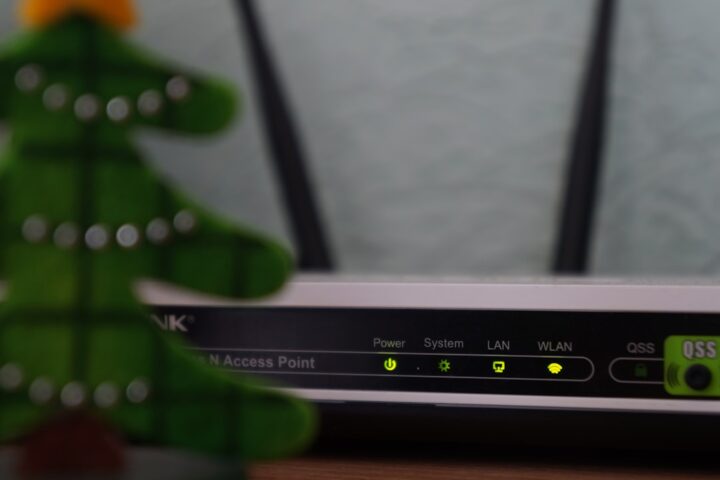
You upgraded to a Wi-Fi 6E router. Your laptop and newest phone connect on the 6 GHz band with great speeds. Your older devices stayed on 5 GHz. Your smart home IoT devices are scattered: most on 2.4 GHz, a few on 5 GHz. Then you notice your smart bulbs are dropping more often than before. Your security cameras struggle. Your voice assistants are slow. Adding Wi-Fi 6E was supposed to be a pure upgrade, not a downgrade for some devices.
What 6 GHz brings
Wi-Fi 6E adds the 6 GHz band on top of the existing 2.4 and 5 GHz bands. 6 GHz offers:
- Massive additional bandwidth (less congestion)
- Lower latency
- Newer security (WPA3 required)
The catch: only Wi-Fi 6E and Wi-Fi 7 client devices can use 6 GHz. Everything else stays on 2.4 or 5 GHz, which has not changed.
The IoT device on 2.4 GHz
Most smart bulbs, plugs, cameras, sensors only support 2.4 GHz. Many older Echo, Google Home, and HomePod devices are also 2.4 GHz only.
These devices are unaffected by 6E. If they worked before, they should still work. If they did not work well before, the 6E upgrade does not help them.
Why upgrading to 6E might hurt IoT
Several side effects of a 6E router can hurt IoT performance:
- The new router may have weaker 2.4 GHz radio than your old router. 6E routers prioritize 6 GHz; the 2.4 GHz radio may be smaller, less powerful, or shared aggressively with 5 GHz.
- The new router’s default channel for 2.4 GHz may conflict with your IoT network needs.
- The new router’s default WPA3 security may not be supported by older IoT devices.
- The new router may have band steering that pushes 2.4 GHz devices off the band they need.
The fix is in the router’s configuration, not in your IoT devices.
Separate SSID for IoT
The cleanest setup for a 6E home: separate SSIDs for each use case.
- “HomeFast” on 6 GHz only, WPA3 only. For laptops and phones.
- “HomeMain” on 2.4 GHz and 5 GHz with band steering. For tablets and most devices.
- “HomeIoT” on 2.4 GHz only, WPA2, fixed channel. For smart bulbs, plugs, cameras.
Each network is optimized for its devices. IoT devices never see the 6 GHz band and are not confused by band steering.
WPA3 versus WPA2
6E requires WPA3 on the 6 GHz band. Most consumer IoT devices only support WPA2. If your router is set to WPA3-only on 2.4 GHz too, IoT devices cannot connect.
Set 2.4 GHz to WPA2 or WPA2/WPA3 mixed mode. Mixed mode lets WPA2 IoT devices connect while still offering WPA3 to capable devices.
The band steering trap
Band steering directs clients to the best band. The router decides what is best. For a phone, 6 GHz is best. For an IoT device, 6 GHz is impossible and 5 GHz is bad if the device only supports 2.4 GHz.
If your IoT device tries to connect and gets steered to 5 GHz, it fails. The device may retry indefinitely or give up.
Disable band steering for IoT devices either by separate SSID (as above) or by per-device override if your router supports it.
The 2.4 GHz channel width
2.4 GHz supports 20 MHz or 40 MHz channels. 40 MHz is faster but only viable in environments without congestion. In a typical apartment building, 40 MHz on 2.4 GHz causes interference with neighbors and degrades performance for everyone.
Set 2.4 GHz to 20 MHz width. Speed is reduced but reliability improves dramatically. For IoT devices that need only a few Mbps, the trade-off is correct.
The transmit power adjustment
Many 6E routers default to high transmit power on 2.4 GHz, which can cause your network to bully nearby neighbor networks. Some routers let you reduce 2.4 GHz transmit power for better coexistence.
If your neighbors complain about Wi-Fi performance after you got a new router, this may be why.
Mesh nodes and 6 GHz backhaul
Some 6E mesh systems use 6 GHz for the backhaul (the link between mesh nodes). This is fast and uncongested. The client-facing radios use 2.4 and 5 GHz.
This is the ideal architecture for IoT: clients see clean 2.4 GHz with no backhaul contention. If your 6E mesh supports this, enable it.
The 6 GHz unsafe perception
Some users worry 6 GHz signals are riskier or less reliable. The reality: 6 GHz signals attenuate more quickly through walls than 5 GHz. Range is shorter. But within range, performance is excellent.
For IoT placed away from the 6E router, 6 GHz may not reach. This is by design and not a problem if you have 2.4 GHz for those devices.
The Matter and 6E intersection
Some newer Matter devices support 6 GHz. They benefit from the lower latency. For most Matter devices, 2.4 GHz or Thread is sufficient and 6 GHz is overkill.
If you have a Matter device that supports 6 GHz, it can use it. But verify your network’s 6 GHz is reachable from the device’s location.
The Thread border router considerations
Some 6E routers include Thread border routers (Eero, some TP-Link Deco models). The Thread radio is separate from the Wi-Fi radios and not affected by 6E.
If your 6E router includes a Thread border router, your Thread devices benefit from the integration. Verify the Thread feature is enabled in router settings.
Test before declaring success
After upgrading to 6E, test:
- Each IoT device is reachable from its associated app
- Voice commands work end-to-end
- Smart camera streams without lag
- Smart bulbs respond promptly
Issues detected early are easier to fix than ones discovered weeks later.
The five-year upgrade window
Wi-Fi 6E is overkill for most smart home devices today, but the routers will last five years. Buying 6E now is a future-proofing decision, not an immediate-benefit one. If your current router is healthy, the upgrade urgency is low.
The future benefit is real: 6 GHz is uncongested and will increasingly host high-bandwidth Wi-Fi devices like AR glasses and 4K cameras. The wider trade-off analysis for network upgrades is in our channel selection guide.
The migration cost worth weighing
Upgrading to Wi-Fi 6E requires not just the router but compatible client devices. If your laptops and phones predate 6E, the upgrade benefits a smaller set of devices than the marketing suggests. Time the upgrade around natural device refresh cycles rather than rushing in. The wider topic of network design choices is in our mesh roaming guide.